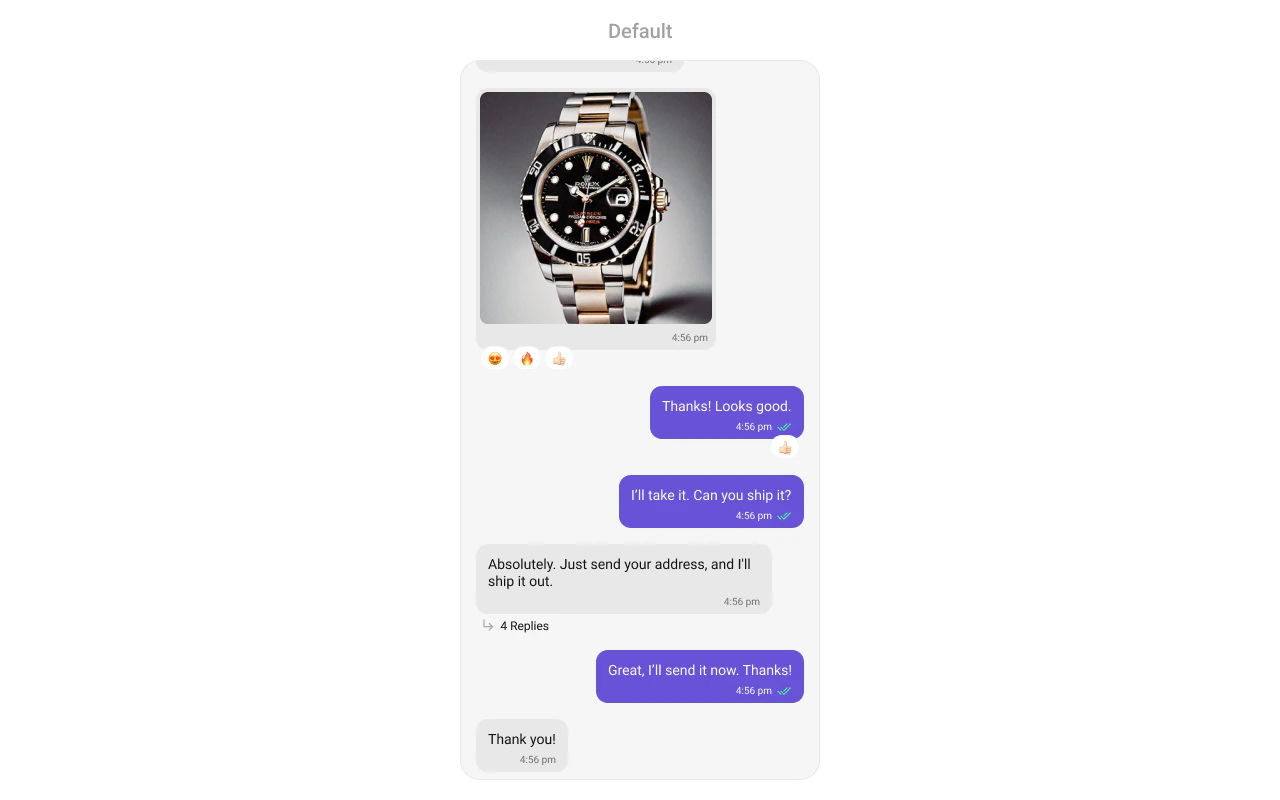
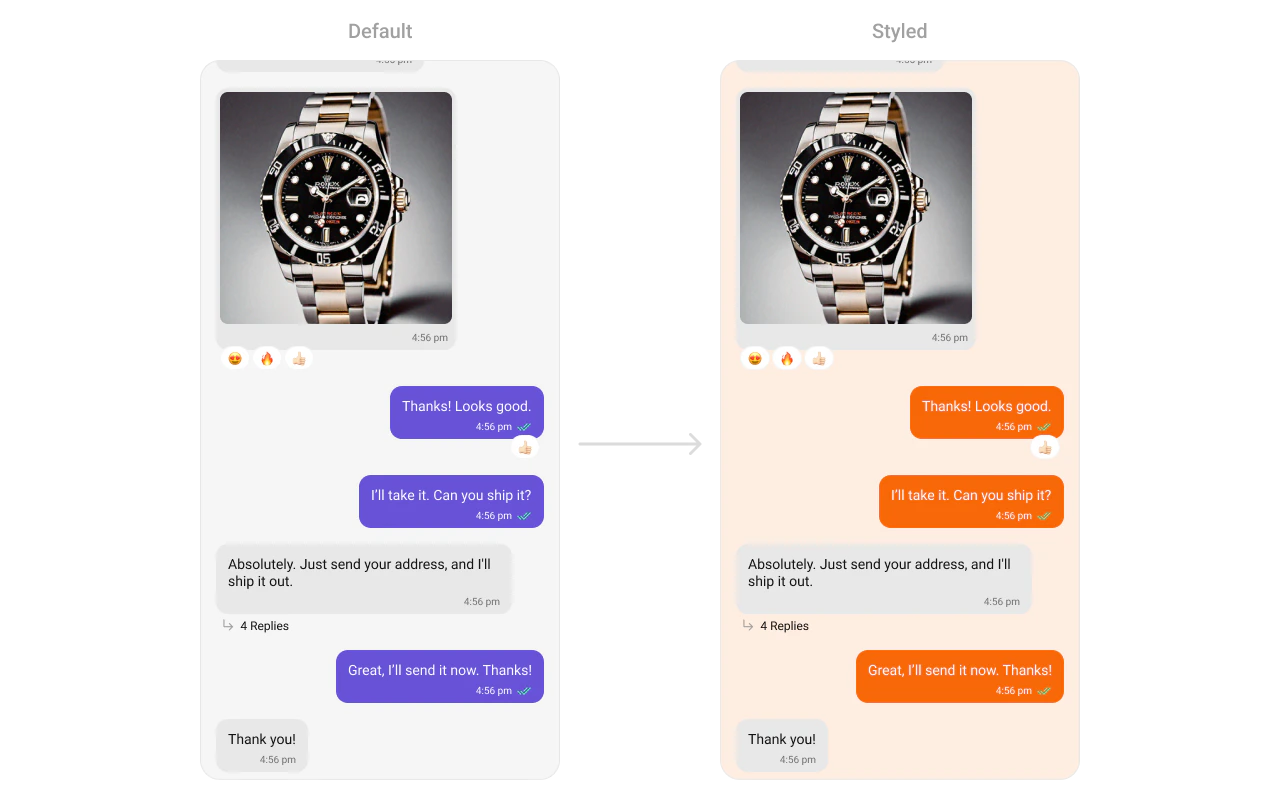
CometChatMessageList renders a scrollable list of messages for a conversation with real-time updates for new messages, edits, deletions, reactions, and threaded replies.Where It Fits CometChatMessageList is a message display component. It requires either a User or Group object to fetch and render messages. Wire it with CometChatMessageHeader and CometChatMessageComposer to build a complete messaging layout. Kotlin (XML Views)
Jetpack Compose
< com.cometchat.uikit.kotlin.presentation.messagelist.ui.CometChatMessageList android:id = "@+id/message_list" android:layout_width = "match_parent" android:layout_height = "match_parent" />
val messageList = findViewById < CometChatMessageList >(R.id.message_list) messageList. setUser (user)
CometChatMessageList ( user = user )
Quick Start Kotlin (XML Views)
Jetpack Compose
Add to your layout XML: < com.cometchat.uikit.kotlin.presentation.messagelist.ui.CometChatMessageList android:id = "@+id/message_list" android:layout_width = "match_parent" android:layout_height = "match_parent" />
Set a User or Group — this is required: override fun onCreate (savedInstanceState: Bundle ?) { super . onCreate (savedInstanceState) setContentView (R.layout.your_layout) val messageList = findViewById < CometChatMessageList >(R.id.message_list) messageList. setUser (user) // or messageList.setGroup(group) }
@Composable fun MessagesScreen () { CometChatMessageList ( user = user // or group = group ) }
Prerequisites: CometChat SDK initialized with CometChatUIKit.init(), a user logged in, and the UI Kit dependency added.
Simply adding the MessageList component to the layout will only display the loading indicator. You must supply a User or Group object to fetch messages.
Filtering Pass a MessagesRequest.MessagesRequestBuilder to control what loads:
Kotlin (XML Views)
Jetpack Compose
messageList. setMessagesRequestBuilder ( MessagesRequest. MessagesRequestBuilder () . setSearchKeyword ( "hello" ) . setLimit ( 30 ) )
CometChatMessageList ( user = user, messagesRequestBuilder = MessagesRequest. MessagesRequestBuilder () . setSearchKeyword ( "hello" ) . setLimit ( 30 ) )
Filter Recipes Recipe Builder method Search by keyword .setSearchKeyword("hello")Filter by UID .setUID("user_uid")Filter by GUID .setGUID("group_guid")Limit per page .setLimit(30)Unread only .setUnread(true)Hide deleted messages .hideDeletedMessages(true)
Pass the builder object, not the result of .build(). The component calls .build() internally.
Actions and Events Callback Methods onThreadRepliesClickFires when a user taps a threaded message bubble.
Kotlin (XML Views)
Jetpack Compose
messageList. setOnThreadRepliesClick { context, baseMessage, template -> // Navigate to thread view }
CometChatMessageList ( user = user, onThreadRepliesClick = { context, baseMessage, template -> // Navigate to thread view } )
onErrorFires on internal errors (network failure, auth issue, SDK exception).
Kotlin (XML Views)
Jetpack Compose
messageList. setOnError { exception -> Log. e ( "MessageList" , "Error: ${ exception.message } " ) }
CometChatMessageList ( user = user, onError = { exception -> Log. e ( "MessageList" , "Error: ${ exception.message } " ) } )
onLoadFires when the list is successfully fetched and loaded.
Kotlin (XML Views)
Jetpack Compose
messageList. setOnLoad { messages -> Log. d ( "MessageList" , "Loaded ${ messages.size } " ) }
CometChatMessageList ( user = user, onLoad = { messages -> Log. d ( "MessageList" , "Loaded ${ messages.size } " ) } )
onEmptyFires when the list is empty after loading.
Kotlin (XML Views)
Jetpack Compose
messageList. setOnEmpty { Log. d ( "MessageList" , "No messages" ) }
CometChatMessageList ( user = user, onEmpty = { /* no messages */ } )
SDK Events (Real-Time, Automatic) The component listens to SDK message events internally. No manual setup needed.
Automatic: new messages, edits, deletions, and reactions update the list in real time.
Functionality Method (Kotlin XML) Compose Parameter Description setUser(user)user = userSet user for 1-on-1 conversation setGroup(group)group = groupSet group for group conversation setHideLoadingState(true)hideLoadingState = trueHide loading indicator setHideEmptyState(true)hideEmptyState = trueHide empty state view setHideErrorState(true)hideErrorState = trueHide error state view setStartFromUnreadMessages(true)startFromUnreadMessages = trueScroll to first unread on load setMessagesRequestBuilder(builder)messagesRequestBuilder = builderCustom message request builder setBubbleFactories(list)bubbleFactories = listSet custom bubble factories for message types setOnThreadRepliesClick { }onThreadRepliesClick = { }Thread reply tap callback
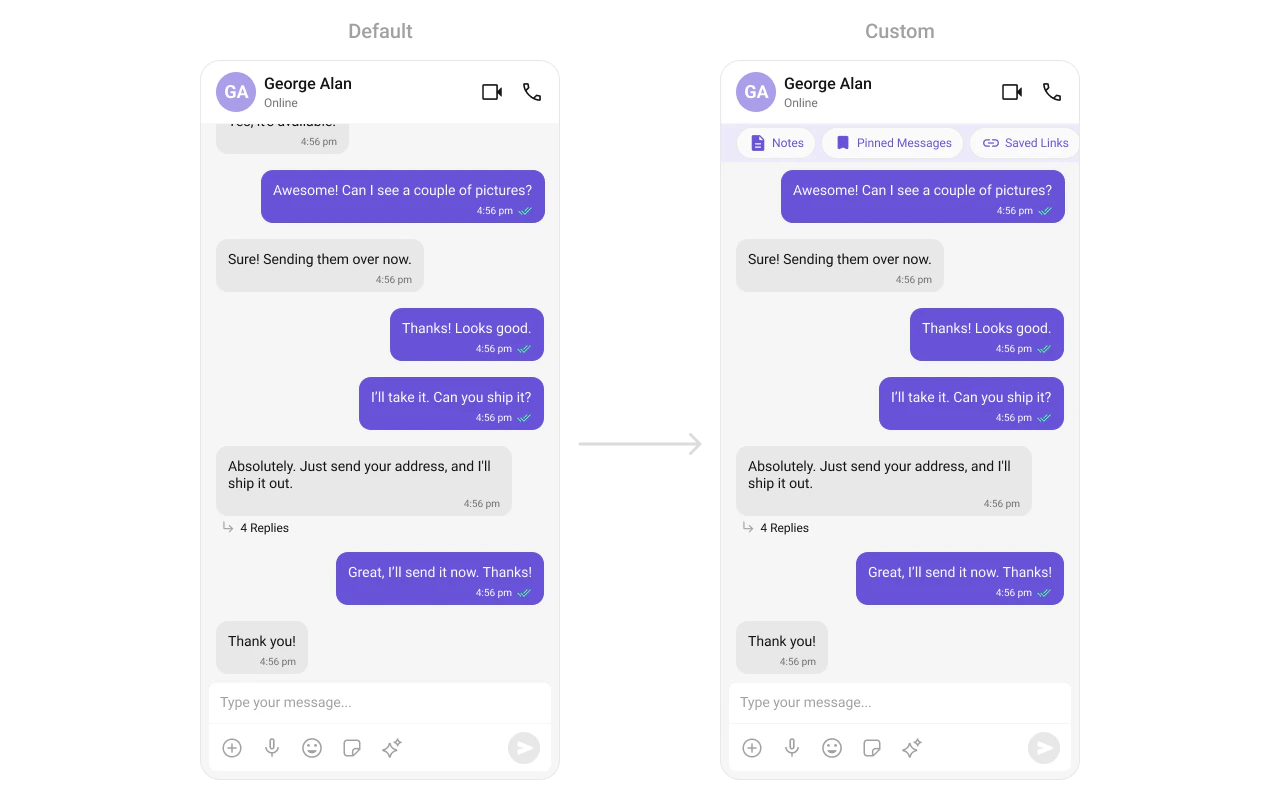
Custom View Slots Custom view displayed at the top of the message list.
Kotlin (XML Views)
Jetpack Compose
messageList. setHeaderView (View. inflate (context, R.layout.custom_header_layout, null ))
CometChatMessageList ( user = user, headerView = { Row { Text ( "Notes" ) Spacer (Modifier. width ( 8 .dp)) Text ( "Pinned Messages" ) } } )
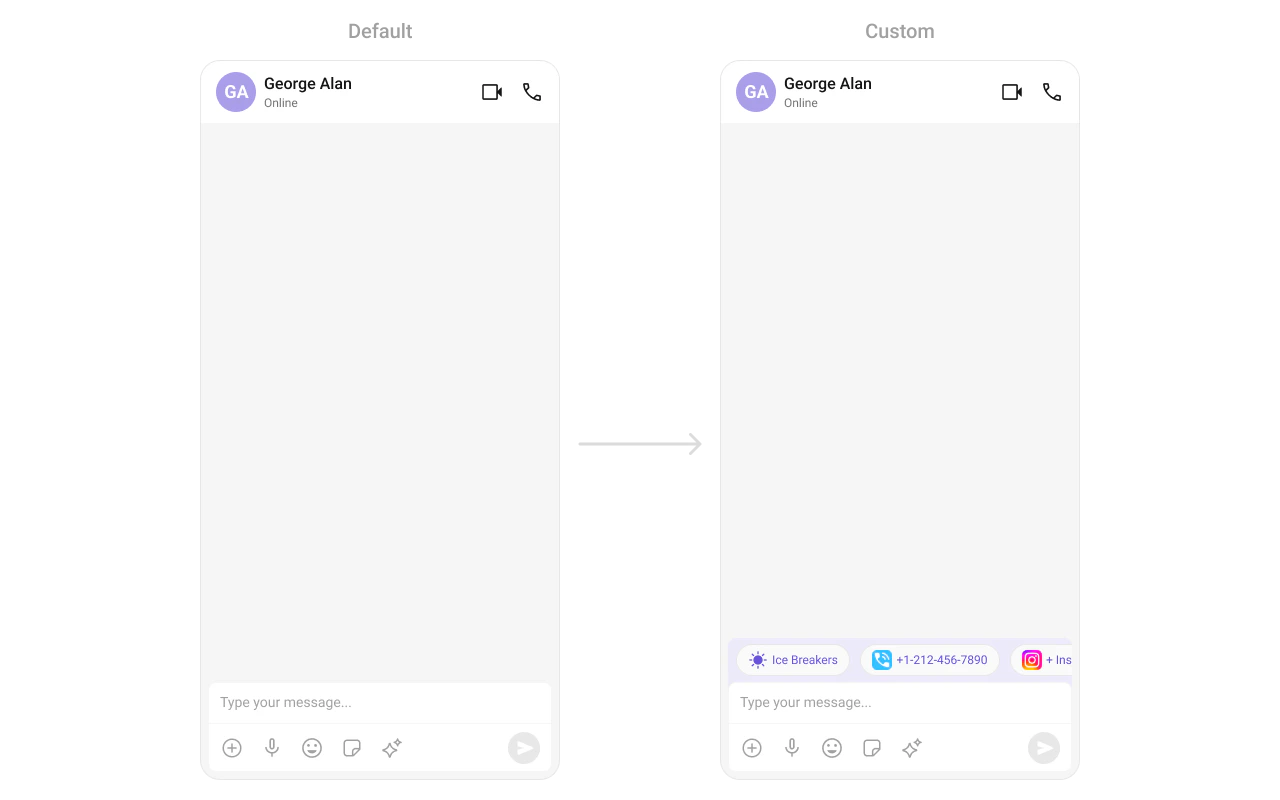
Custom view displayed at the bottom of the message list.
Kotlin (XML Views)
Jetpack Compose
messageList. setFooterView (View. inflate (context, R.layout.custom_footer_layout, null ))
CometChatMessageList ( user = user, footerView = { Text ( "End of messages" ) } )
State Views Kotlin (XML Views)
Jetpack Compose
messageList. setEmptyView (customEmptyView) messageList. setErrorView (customErrorView) messageList. setLoadingView (customLoadingView)
CometChatMessageList ( user = user, emptyView = { Text ( "No messages yet" ) }, errorView = { onRetry -> Button (onClick = onRetry) { Text ( "Retry" ) } }, loadingView = { CircularProgressIndicator () } )
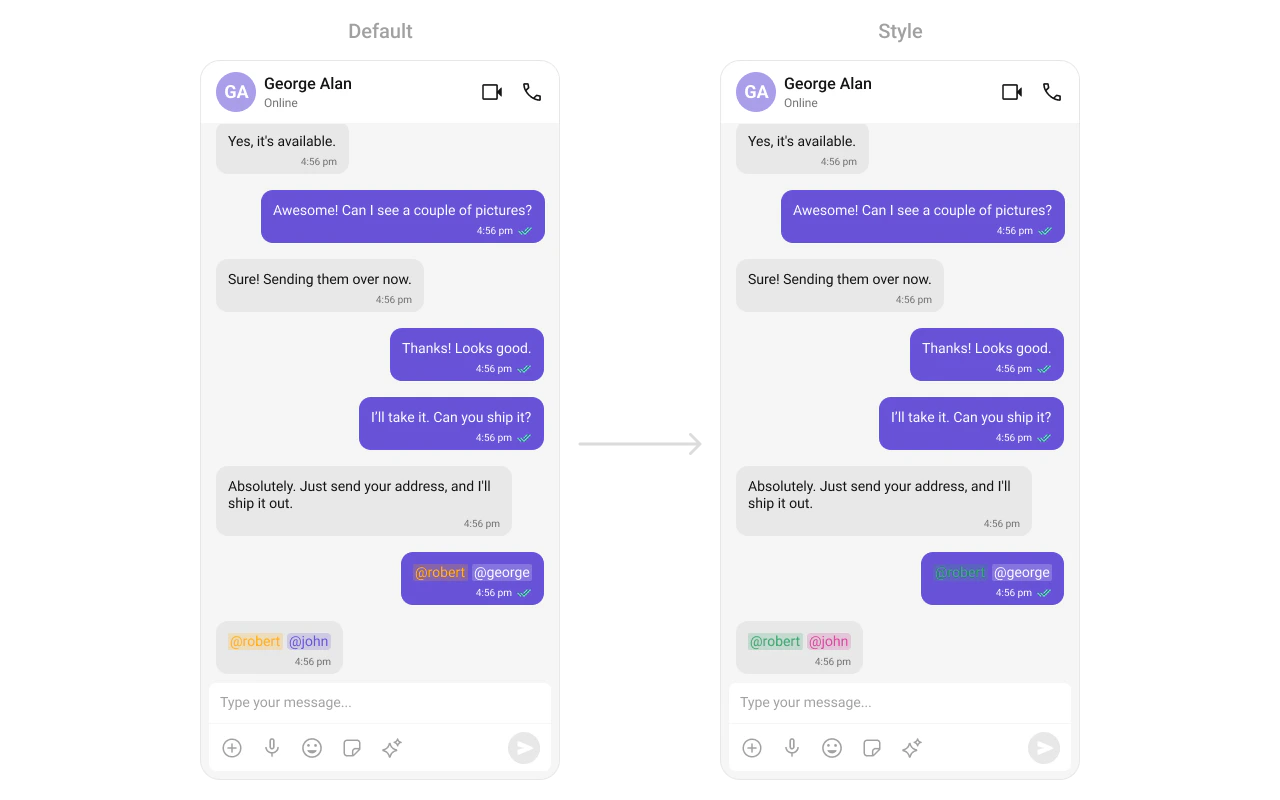
Text Formatters (Mentions) Kotlin (XML Views)
Jetpack Compose
val mentionFormatter = CometChatMentionsFormatter (context) mentionFormatter. setMessageListMentionTextStyle (context, R.style.CustomMentionsStyle) val textFormatters: MutableList < CometChatTextFormatter > = ArrayList () textFormatters. add (mentionFormatter) messageList. setTextFormatters (textFormatters)
val mentionFormatter = CometChatMentionsFormatter (context) CometChatMessageList ( user = user, textFormatters = listOf (mentionFormatter) )
Bubble Factory CometChatMessageList uses a factory-based pattern to render message content. Each message type (text, image, video, etc.) has a corresponding BubbleFactory that creates and binds the bubble view. You can replace existing factories or register new ones for custom message types.How It Works When a message is displayed, the list resolves a factory key from the message’s category and type (e.g., message_text, custom_location). If a matching BubbleFactory is registered, it handles view creation and binding. Otherwise, the built-in InternalContentRenderer handles default rendering.
A BubbleFactory has two lifecycle phases:
create*View(context) — called once when the ViewHolder is created. The message object is not available at this point.bind*View(view, message, alignment, ...) — called every time a message is displayed. This is where you populate the view with message data.
Replacing an Existing Bubble Factory Override how a built-in message type renders by registering a factory with the same category and type:
Kotlin (XML Views)
Jetpack Compose
class CustomTextBubbleFactory : BubbleFactory () { override fun getCategory (): String = CometChatConstants.CATEGORY_MESSAGE override fun getType (): String = CometChatConstants.MESSAGE_TYPE_TEXT override fun createContentView (context: Context ): View { return TextView (context). apply { setPadding ( 24 , 16 , 24 , 16 ) } } override fun bindContentView ( view: View , message: BaseMessage , alignment: UIKitConstants .MessageBubbleAlignment, holder: RecyclerView .ViewHolder?, position: Int ) { (view as TextView).text = (message as ? TextMessage)?.text ?: "" } } // Replace the default text bubble messageList. setBubbleFactories ( listOf ( CustomTextBubbleFactory ()))
class CustomTextBubbleFactory : BubbleFactory { override fun getCategory (): String = CometChatConstants.CATEGORY_MESSAGE override fun getType (): String = CometChatConstants.MESSAGE_TYPE_TEXT override fun getContentView ( message: BaseMessage , alignment: UIKitConstants .MessageBubbleAlignment, style: CometChatMessageBubbleStyle , textFormatters: List < CometChatTextFormatter > ): @Composable () -> Unit = { Text ( text = (message as ? TextMessage)?.text ?: "" , modifier = Modifier. padding (horizontal = 24 .dp, vertical = 16 .dp) ) } } CometChatMessageList ( user = user, bubbleFactories = listOf ( CustomTextBubbleFactory ()) )
Adding a New Bubble Factory for Custom Messages Register a factory for a custom message type that the SDK doesn’t handle by default:
Kotlin (XML Views)
Jetpack Compose
class LocationBubbleFactory : BubbleFactory () { override fun getCategory (): String = CometChatConstants.CATEGORY_CUSTOM override fun getType (): String = "location" override fun createContentView (context: Context ): View { return LayoutInflater. from (context) . inflate (R.layout.bubble_location, null ) } override fun bindContentView ( view: View , message: BaseMessage , alignment: UIKitConstants .MessageBubbleAlignment, holder: RecyclerView .ViewHolder?, position: Int ) { val customMessage = message as ? CustomMessage ?: return val lat = customMessage.customData?. optDouble ( "latitude" ) ?: 0.0 val lng = customMessage.customData?. optDouble ( "longitude" ) ?: 0.0 view. findViewById < TextView >(R.id.tv_coordinates).text = " $lat , $lng " } } messageList. setBubbleFactories ( listOf ( LocationBubbleFactory ()))
class LocationBubbleFactory : BubbleFactory { override fun getCategory (): String = CometChatConstants.CATEGORY_CUSTOM override fun getType (): String = "location" override fun getContentView ( message: BaseMessage , alignment: UIKitConstants .MessageBubbleAlignment, style: CometChatMessageBubbleStyle , textFormatters: List < CometChatTextFormatter > ): @Composable () -> Unit = { val customMessage = message as ? CustomMessage val lat = customMessage?.customData?. optDouble ( "latitude" ) ?: 0.0 val lng = customMessage?.customData?. optDouble ( "longitude" ) ?: 0.0 Text (text = " $lat , $lng " ) } } CometChatMessageList ( user = user, bubbleFactories = listOf ( LocationBubbleFactory ()) )
Replacing the Entire Bubble Override getBubbleView to replace the entire message bubble (including all slots like header, footer, avatar) instead of just the content area:
Kotlin (XML Views)
Jetpack Compose
class FullCustomBubbleFactory : BubbleFactory () { override fun getCategory (): String = CometChatConstants.CATEGORY_CUSTOM override fun getType (): String = "meeting" override fun createBubbleView (context: Context ): View { return LayoutInflater. from (context) . inflate (R.layout.bubble_meeting_full, null ) } override fun bindBubbleView ( view: View , message: BaseMessage , alignment: UIKitConstants .MessageBubbleAlignment, holder: RecyclerView .ViewHolder?, position: Int ) { val customMessage = message as ? CustomMessage ?: return view. findViewById < TextView >(R.id.tv_meeting_title).text = customMessage.customData?. optString ( "title" ) ?: "Meeting" } } messageList. setBubbleFactories ( listOf ( FullCustomBubbleFactory ()))
class FullCustomBubbleFactory : BubbleFactory { override fun getCategory (): String = CometChatConstants.CATEGORY_CUSTOM override fun getType (): String = "meeting" override fun getBubbleView ( message: BaseMessage , alignment: UIKitConstants .MessageBubbleAlignment ): ( @Composable () -> Unit)? = { val customMessage = message as ? CustomMessage val title = customMessage?.customData?. optString ( "title" ) ?: "Meeting" Text (text = title) } } CometChatMessageList ( user = user, bubbleFactories = listOf ( FullCustomBubbleFactory ()) )
Bubble Slot Reference Each BubbleFactory can override individual slots within the bubble:
Kotlin (XML Views)
Jetpack Compose
Slot Create Method Bind Method Description Bubble (full) createBubbleView()bindBubbleView()Replaces the entire bubble. When non-null, all other slots are ignored. Content createContentView()bindContentView()Main message content (required). Leading createLeadingView()bindLeadingView()Avatar area on the left side. Header createHeaderView()bindHeaderView()Sender name and timestamp. Reply createReplyView()bindReplyView()Quoted/reply-to message preview. Bottom createBottomView()bindBottomView()Below content (e.g., moderation). Status Info createStatusInfoView()bindStatusInfoView()Timestamp and read receipts. Thread createThreadView()bindThreadView()Threaded replies indicator. Footer createFooterView()bindFooterView()Reactions and additional footer content.
Slot Method Description Bubble (full) getBubbleView()Replaces the entire bubble. When non-null, all other slots are ignored. Content getContentView()Main message content (required). Leading getLeadingView()Avatar area on the left side. Header getHeaderView()Sender name and timestamp. Reply getReplyView()Quoted/reply-to message preview. Bottom getBottomView()Below content (e.g., moderation). Status Info getStatusInfoView()Timestamp and read receipts. Thread getThreadView()Threaded replies indicator. Footer getFooterView()Reactions and additional footer content.
Bubble Slot View Providers While BubbleFactory customizes rendering per message type, slot view providers let you override a specific slot across all message types. This is useful when you want consistent customization (e.g., always show a custom avatar or always add a custom footer) regardless of the message type.
Slot view providers take priority over BubbleFactory slot methods. If both are set, the provider wins.
Kotlin (XML Views)
Jetpack Compose
Use BubbleViewProvider — an interface with createView() (called once per ViewHolder) and bindView() (called each time a message binds): // Custom leading view (avatar) for all messages messageList. setLeadingViewProvider ( object : BubbleViewProvider { override fun createView ( context: Context , message: BaseMessage , alignment: UIKitConstants .MessageBubbleAlignment ): View ? { return if (alignment == UIKitConstants.MessageBubbleAlignment.LEFT) { CometChatAvatar (context) } else null } override fun bindView ( view: View , message: BaseMessage , alignment: UIKitConstants .MessageBubbleAlignment ) { (view as ? CometChatAvatar)?. setUser (message.sender) } }) // Custom status info view for all messages messageList. setStatusInfoViewProvider ( object : BubbleViewProvider { override fun createView ( context: Context , message: BaseMessage , alignment: UIKitConstants .MessageBubbleAlignment ): View ? { return TextView (context). apply { textSize = 10f } } override fun bindView ( view: View , message: BaseMessage , alignment: UIKitConstants .MessageBubbleAlignment ) { (view as ? TextView)?.text = formatTimestamp (message.sentAt) } })
Available provider setters: Method Slot setLeadingViewProvider()Avatar area setHeaderViewProvider()Sender name / timestamp setReplyViewProvider()Reply-to preview setContentViewProvider()Main content (overrides all factories) setBottomViewProvider()Below content (moderation) setStatusInfoViewProvider()Timestamp / receipts setThreadViewProvider()Thread replies indicator setFooterViewProvider()Reactions / footer
Pass composable lambdas that receive the message and its alignment: CometChatMessageList ( user = user, leadingView = { message, alignment -> if (alignment == UIKitConstants.MessageBubbleAlignment.LEFT) { CometChatAvatar (user = message.sender) } }, statusInfoView = { message, alignment -> Text ( text = formatTimestamp (message.sentAt), style = CometChatTheme.typography.caption1Regular ) }, footerView = { message, alignment -> // Custom reactions display MessageReactions (message = message) } )
Available slot parameters: Parameter Type Slot leadingView@Composable (BaseMessage, MessageAlignment) -> UnitAvatar area headerView@Composable (BaseMessage, MessageAlignment) -> UnitSender name / timestamp replyView@Composable (BaseMessage, MessageAlignment) -> UnitReply-to preview contentView@Composable (BaseMessage, MessageAlignment) -> UnitMain content (overrides all factories) bottomView@Composable (BaseMessage, MessageAlignment) -> UnitBelow content (moderation) statusInfoView@Composable (BaseMessage, MessageAlignment) -> UnitTimestamp / receipts threadView@Composable (BaseMessage, MessageAlignment) -> UnitThread replies indicator footerView@Composable (BaseMessage, MessageAlignment) -> UnitReactions / footer
Message Options Message options are the contextual actions shown when a user long-presses a message bubble (e.g., Reply, Copy, Edit, Delete). You can control their visibility, replace the entire options list, or append custom options.
Toggling Default Option Visibility Each built-in option has a visibility setter. Pass View.VISIBLE or View.GONE:
Kotlin (XML Views)
Jetpack Compose
// Hide specific options messageList. setDeleteMessageOptionVisibility (View.GONE) messageList. setEditMessageOptionVisibility (View.GONE) messageList. setTranslateMessageOptionVisibility (View.GONE) // Show an option that's hidden by default messageList. setMarkAsUnreadOptionVisibility (View.VISIBLE)
CometChatMessageList ( user = user, hideDeleteOption = true , hideEditOption = true , hideTranslateOption = true , showMarkAsUnreadOption = true )
Available visibility methods (Kotlin XML):
Method Default Description setReplyInThreadOptionVisibility()VISIBLEReply in thread setReplyOptionVisibility()VISIBLEReply to message setCopyMessageOptionVisibility()VISIBLECopy message text setEditMessageOptionVisibility()VISIBLEEdit sent message setDeleteMessageOptionVisibility()VISIBLEDelete message setMessageReactionOptionVisibility()VISIBLEAdd reaction setMessageInfoOptionVisibility()VISIBLEView message info setTranslateMessageOptionVisibility()VISIBLETranslate message setShareMessageOptionVisibility()VISIBLEShare message setMarkAsUnreadOptionVisibility()GONEMark as unread
Replacing All Options (setOptions) Use setOptions to completely replace the default options for a message. Return a list to override, or null to fall back to defaults:
Kotlin (XML Views)
Jetpack Compose
messageList. setOptions { message -> listOf ( CometChatMessageOption ( id = "custom_pin" , title = "Pin Message" , icon = R.drawable.ic_pin, onClick = { pinMessage (message) } ), CometChatMessageOption ( id = UIKitConstants.MessageOption.COPY, title = context. getString (R.string.cometchat_copy), icon = R.drawable.cometchat_ic_copy, onClick = { copyMessage (message) } ) ) }
CometChatMessageList ( user = user, options = { message -> listOf ( CometChatMessageOption ( id = "custom_pin" , title = "Pin Message" , icon = R.drawable.ic_pin, onClick = { pinMessage (message) } ), CometChatMessageOption ( id = UIKitConstants.MessageOption.COPY, title = context. getString (R.string.cometchat_copy), icon = R.drawable.cometchat_ic_copy, onClick = { copyMessage (message) } ) ) } )
When setOptions returns a non-null list, addOptions is not invoked.
Appending Custom Options (addOptions) Use addOptions to append additional options after the default ones. This is invoked only when setOptions is not set or returns null:
Kotlin (XML Views)
Jetpack Compose
messageList. addOptions { message -> listOf ( CometChatMessageOption ( id = "custom_bookmark" , title = "Bookmark" , icon = R.drawable.ic_bookmark, onClick = { bookmarkMessage (message) } ), CometChatMessageOption ( id = "custom_remind" , title = "Remind Me" , icon = R.drawable.ic_alarm, onClick = { setReminder (message) } ) ) }
CometChatMessageList ( user = user, addOptions = { message -> listOf ( CometChatMessageOption ( id = "custom_bookmark" , title = "Bookmark" , icon = R.drawable.ic_bookmark, onClick = { bookmarkMessage (message) } ), CometChatMessageOption ( id = "custom_remind" , title = "Remind Me" , icon = R.drawable.ic_alarm, onClick = { setReminder (message) } ) ) } )
Conditional Options Per Message Both setOptions and addOptions receive the BaseMessage, so you can return different options based on message type, sender, or any other condition:
Kotlin (XML Views)
Jetpack Compose
messageList. setOptions { message -> when { // Custom options for your own messages message.sender?.uid == CometChat. getLoggedInUser ()?.uid -> listOf ( CometChatMessageOption (id = "edit" , title = "Edit" , icon = R.drawable.cometchat_ic_edit), CometChatMessageOption (id = "delete" , title = "Delete" , icon = R.drawable.cometchat_ic_delete) ) // Default options for others' messages else -> null } }
CometChatMessageList ( user = user, options = { message -> when { message.sender?.uid == CometChat. getLoggedInUser ()?.uid -> listOf ( CometChatMessageOption (id = "edit" , title = "Edit" , icon = R.drawable.cometchat_ic_edit), CometChatMessageOption (id = "delete" , title = "Delete" , icon = R.drawable.cometchat_ic_delete) ) else -> null // fall back to defaults } } )
CometChatMessageOption Reference Property Type Description idStringUnique identifier (use UIKitConstants.MessageOption.* for built-in IDs). titleStringDisplay text for the option. titleColor@ColorInt IntText color (0 for default). icon@DrawableRes IntDrawable resource for the option icon. iconTintColor@ColorInt IntIcon tint color (0 for default). titleAppearance@StyleRes IntText appearance style resource. backgroundColor@ColorInt IntBackground color for the option row. onClick(() -> Unit)?Callback invoked when the option is tapped.
Style Kotlin (XML Views)
Jetpack Compose
Define a custom style in themes.xml: < style name = "CustomMessageListStyle" parent = "CometChatMessageListStyle" > < item name = "cometchatMessageListBackgroundColor" > #F5F5F5 </ item > </ style > < style name = "AppTheme" parent = "CometChatTheme.DayNight" > < item name = "cometchatMessageListStyle" > @style/CustomMessageListStyle </ item > </ style >
CometChatMessageList ( user = user, style = CometChatMessageListStyle. default (). copy ( backgroundColor = Color ( 0xFFF5F5F5 ) ) )
See Component Styling for the full reference.
ViewModel val viewModel = ViewModelProvider ( this ) . get (CometChatMessageListViewModel:: class .java)
Kotlin (XML Views)
Jetpack Compose
messageList. setViewModel (viewModel)
CometChatMessageList ( user = user, messageListViewModel = viewModel )
See ViewModel & Data for state observation and custom repositories.
Next Steps
Message Header Display user/group info in the toolbar
Message Composer Rich input for sending messages
Message Template Customize message bubble structure
Component Styling Detailed styling reference