

AI Integration Quick Reference
AI Integration Quick Reference
| Field | Value |
|---|---|
| Components | CometChatMessageHeader, CometChatMessageList, CometChatMessageComposer |
| Layout | Single chat window — no conversation list |
| Prerequisite | Complete Kotlin Integration or Jetpack Compose Integration Steps 1–3 first |
| Pattern | Support chat, embedded widgets, focused messaging |
What You’re Building
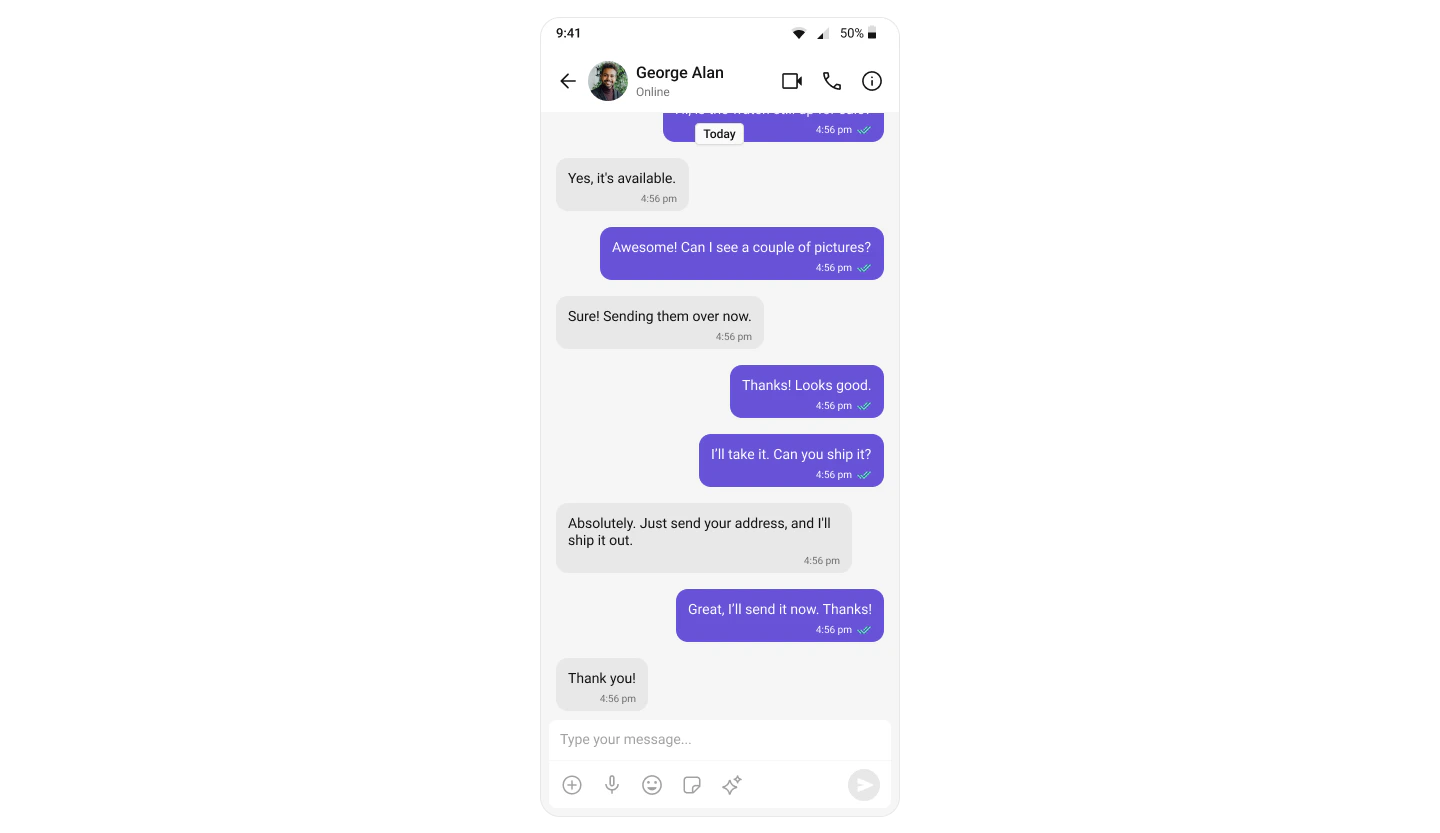
- Message header — displays user/group name, avatar, and status
- Message list — real-time chat history with scrolling
- Message composer — text input with media and attachments
Step 1: Set Up the Message Screen
- Kotlin (XML Views)
- Jetpack Compose
Create an Activity — Activity —
MessageActivity to display the full-screen chat interface.Layout — activity_message.xml:activity_message.xml
MessageActivity.kt:MessageActivity.kt
Step 2: Launch a One-to-One Chat
To open a direct chat with a specific user, pass theUser object when launching the screen.
- Kotlin (XML Views)
- Jetpack Compose
MainActivity.kt
Step 3: Launch a Group Chat
To open a group chat, pass theGroup object instead.
- Kotlin (XML Views)
- Jetpack Compose
MainActivity.kt
Step 4: Register Activity & Permissions
- Kotlin (XML Views)
- Jetpack Compose
Add the activity to your
AndroidManifest.xml:AndroidManifest.xml
AndroidManifest.xml:
AndroidManifest.xml
Next Steps
Components Overview
Explore all available UI Kit components and their customization options
Theming
Customize colors, fonts, and styles to match your brand
Integration
Back to the main integration guide
Feature Guides
Add capabilities like threaded messages, blocking, and group management